Spoiler: Its super easy.
Somehow I never could figure out how to set a conda environment in VS code. So I always would just open a windows terminal, activate my environment and run my scripts from there. That was a pain in the ass to do.
Turns out its super simple to just associate a conda enviroment in VScode. You press ctrl + shift + p and then select the appropriate conda enviroment from the list.
Once set, we get an indication in VScode regarding the conda env thats currently activated.

Interestingly, now when we open a new terminal in VScode we get this notification indicating that the conda env is activated in the terminal even though we dont see it as such.
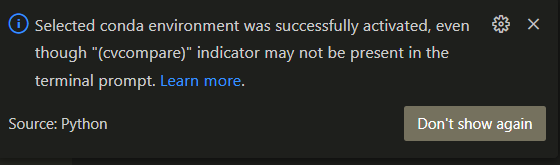
Weird. Maybe its because a powershell terminal that opens up.
One day suddenly mamba/conda stopped working via powershell. I dont know exactly what happened or changed but I think mamba automatically made some breaking changes. Not sure. But basically to activate an environment, the following commands run in powershell,
C:/Users/<user_name>/mambaforge/Scripts/activate
conda activate <env_name>
So if everything is properly configured then the first command activates the base env. But this wasnt happening and hence the second command gave an error saying "conda was not recognized".
Analysis - On powershell, I directly tried to activate the env via
C:\Users\<user_name>\mambaforge\Scripts\conda.exe activate <env_name>
And BAM!!! It gave me an error saying that my shell was not configured properly for conda.
Solution? I ran
C:\Users\<user_name>\mambaforge\Scripts\conda.exe init powershell
And that modified certain scripts and it all worked. Yay.